 Calendar Assistant
Events from your emails – detected by your AI, reviewed by you.
Calendar Assistant reads along in your mailbox, finds events in school, club and doctor’s emails, PDFs, photos and invitations, and shows them as suggestions. One tap on a calendar name and the event is in iCloud. Everything runs on your own server.

How it works
Nothing reaches your calendar unreviewed. The app suggests – you decide.
- Read along. The mailbox is opened read-only. The server reports new emails instantly (IMAP IDLE).
- Detect. Calendar invitations are read exactly; everything else is analysed by an AI on your server – scans and photos included.
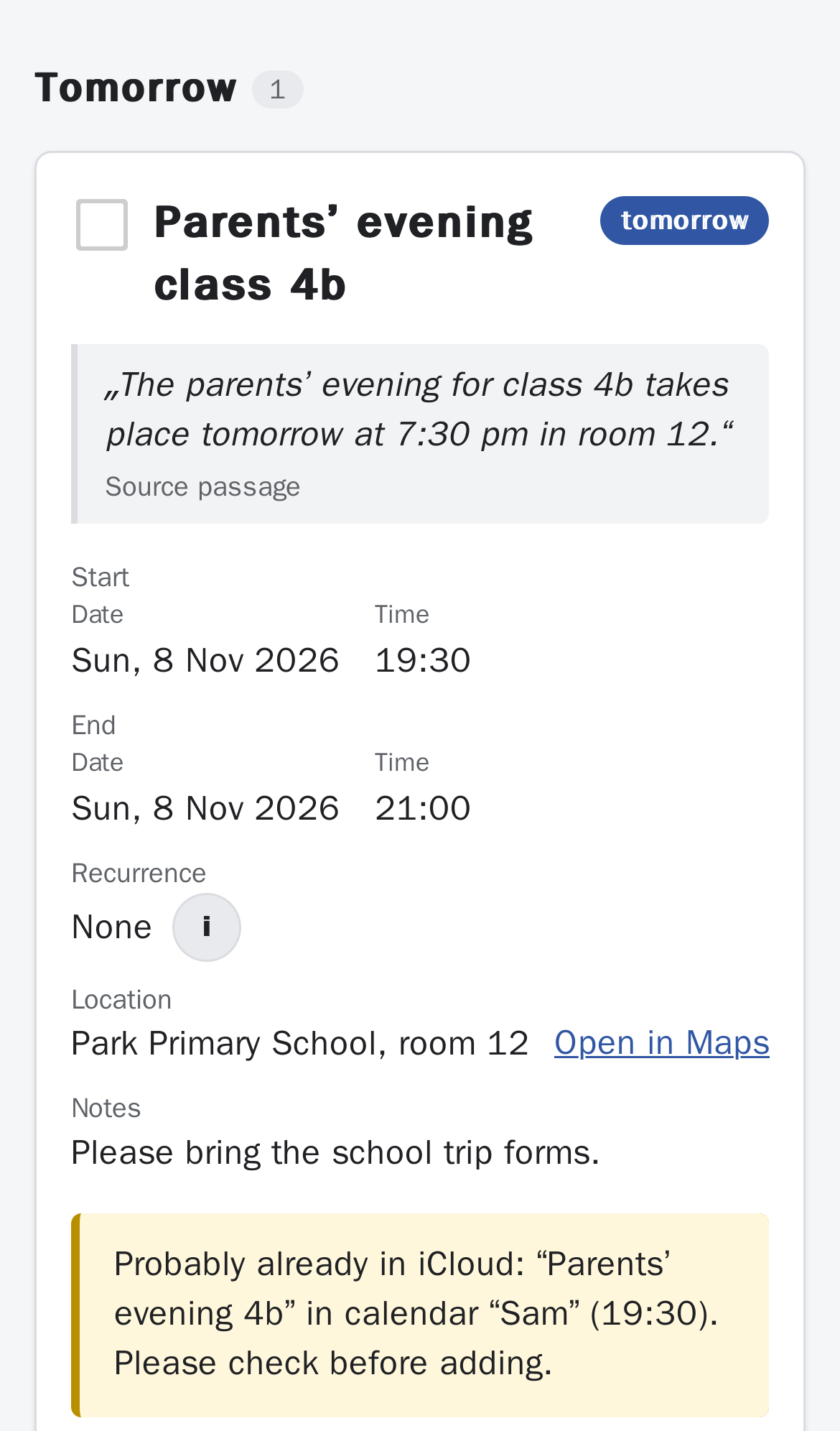
- Review. Each card shows the passage from the email, the AI’s confidence and what is already in iCloud that day.
- Add. Tapping a calendar adds the event with a reminder. You can always undo.
Features
Built for family life: many senders, little time, and the calendar has to be right.
Understands many formats
Email text, PDFs (scanned too), images and .ics invitations from Outlook, rail operators or practice software.
Series and cancellations
“Every Tuesday until Easter, except during the holidays” becomes a series. Follow-up emails with changes or cancellations are presented for confirmation.
Less noise
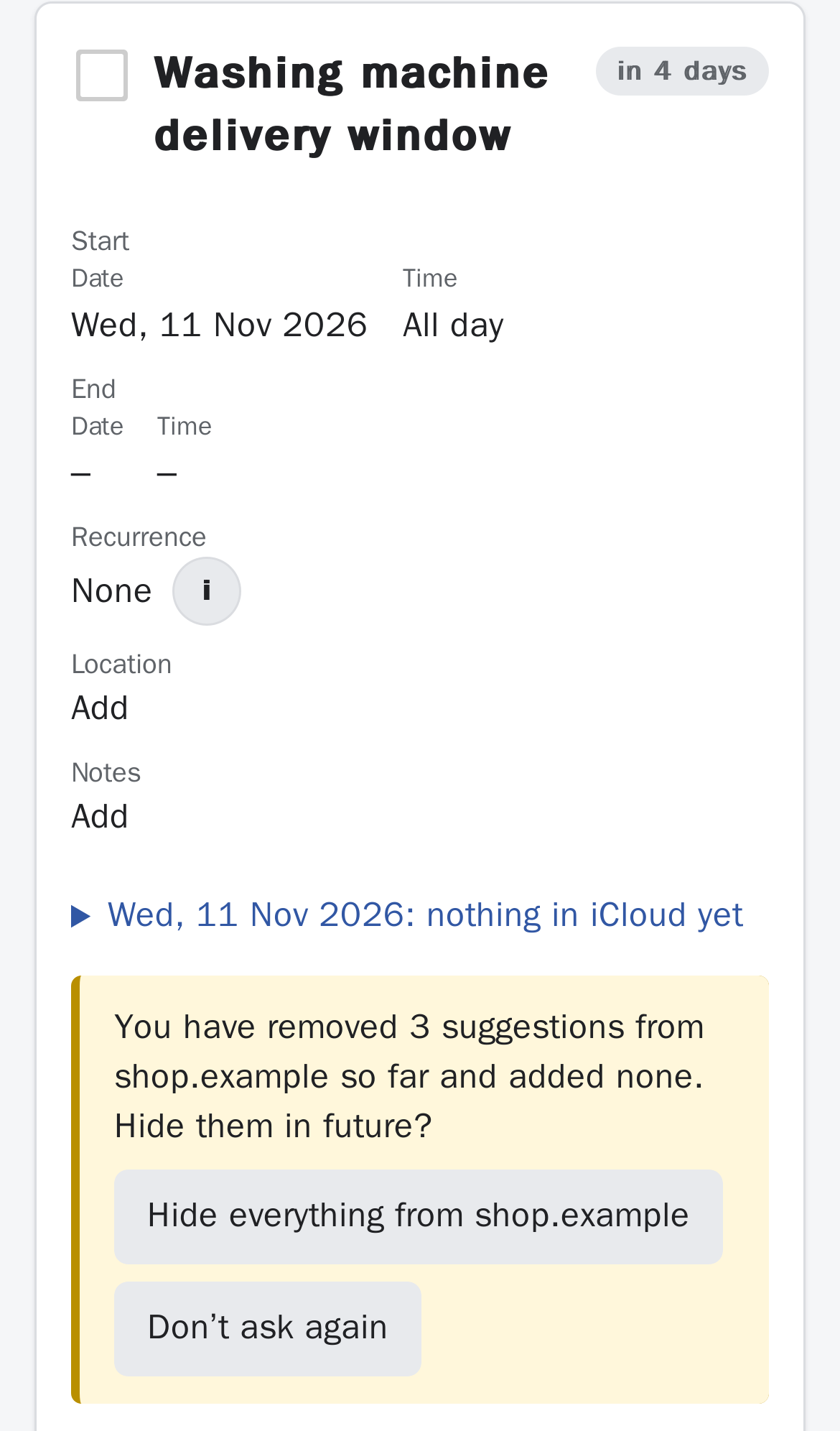
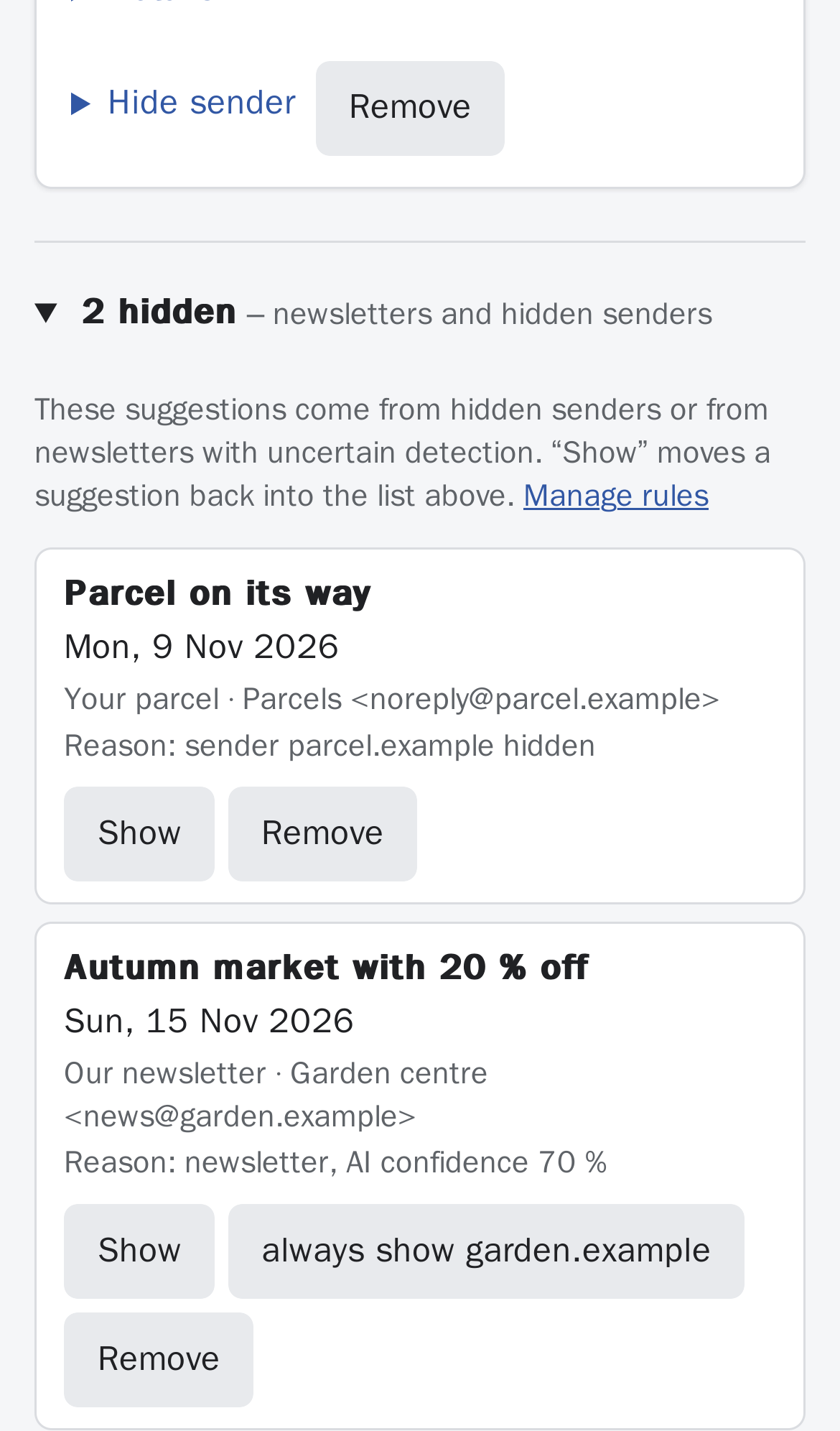
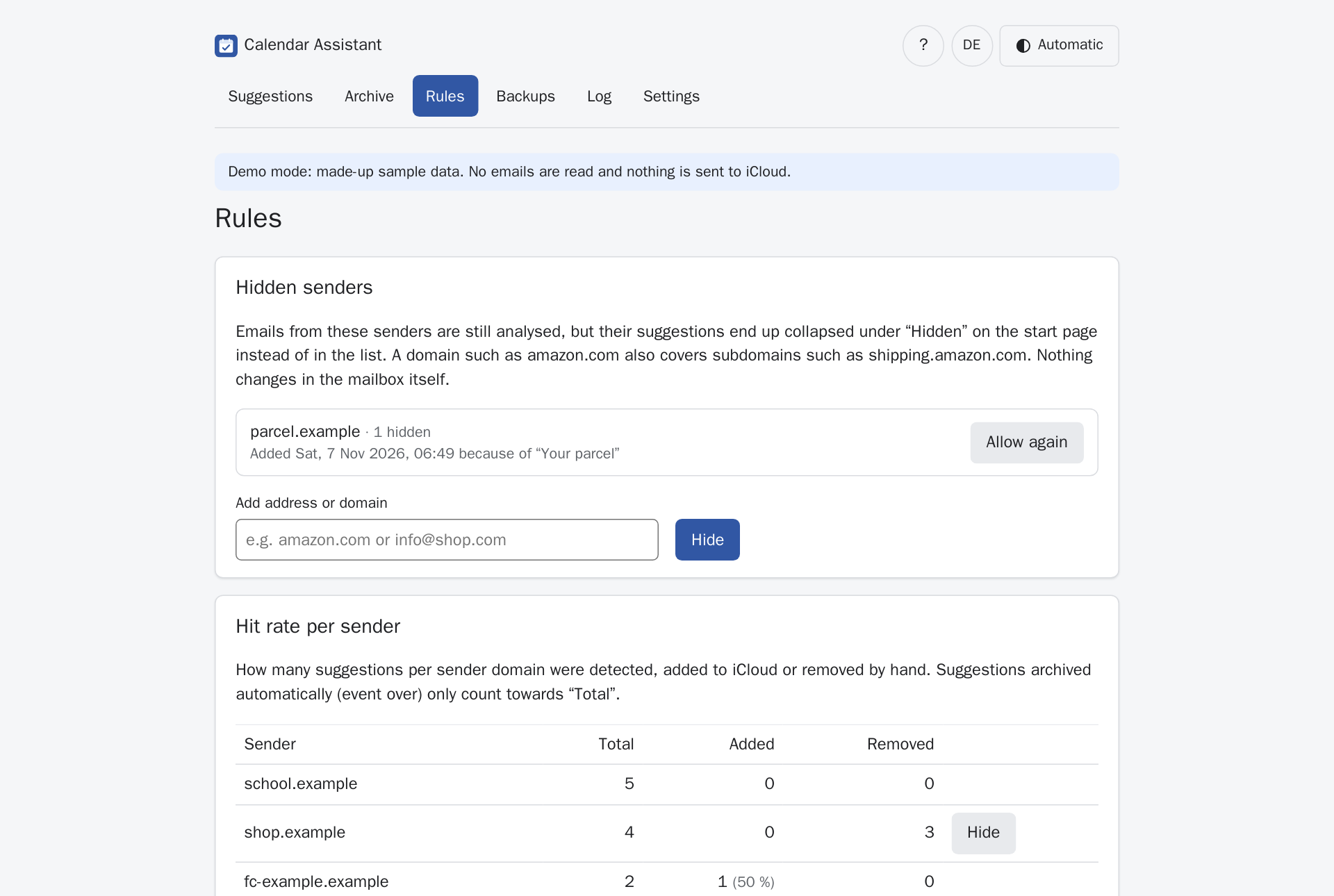
Shipping, advertising and newsletter emails are recognised. You can hide annoying senders – without losing anything.
Learns as you go
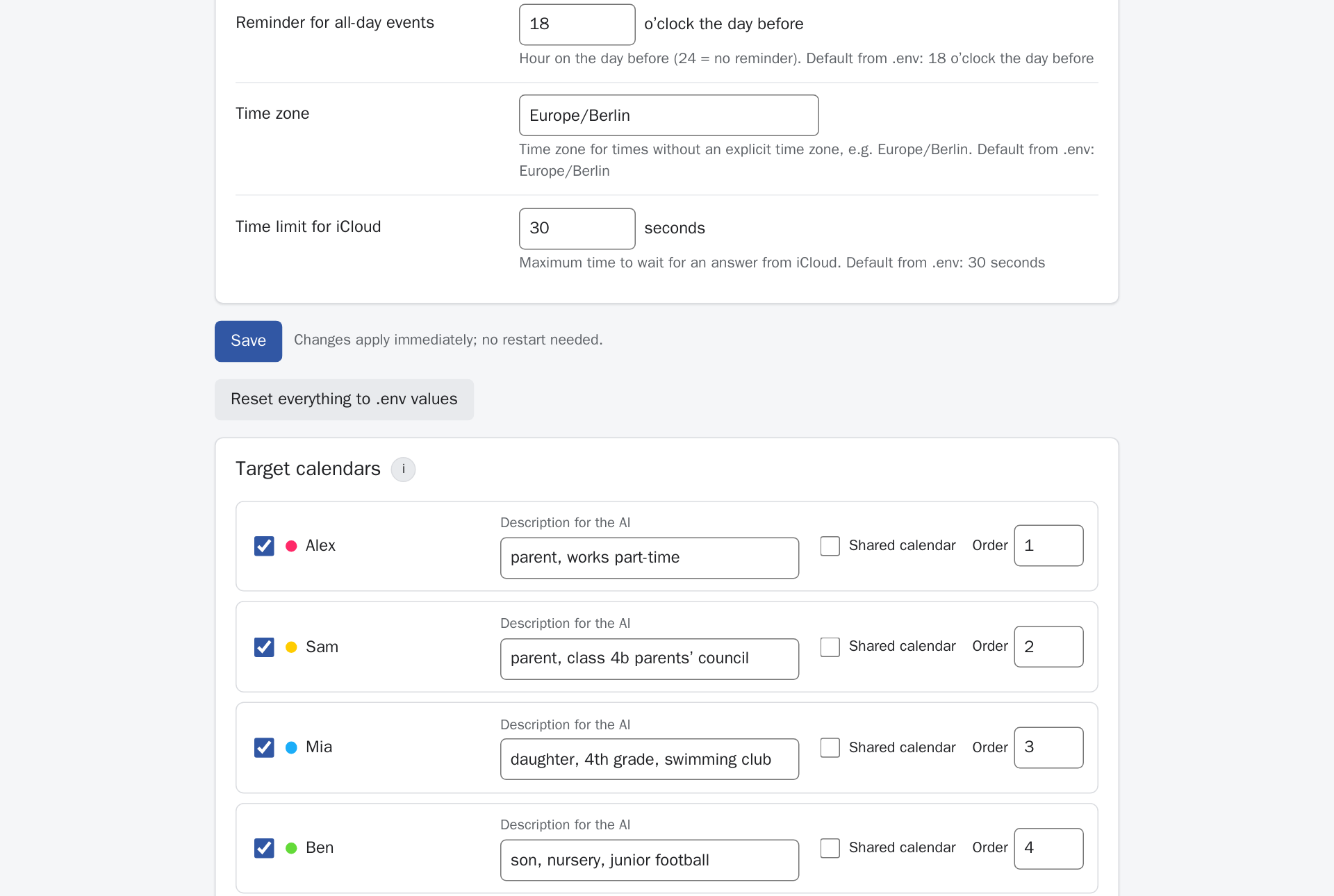
Correct the calendar for a sender once, and the app remembers it for similar events. Each calendar gets a description for the AI.
No double bookings
Warnings about duplicates, events already in iCloud and overlaps in the chosen calendar.
Safely backed up
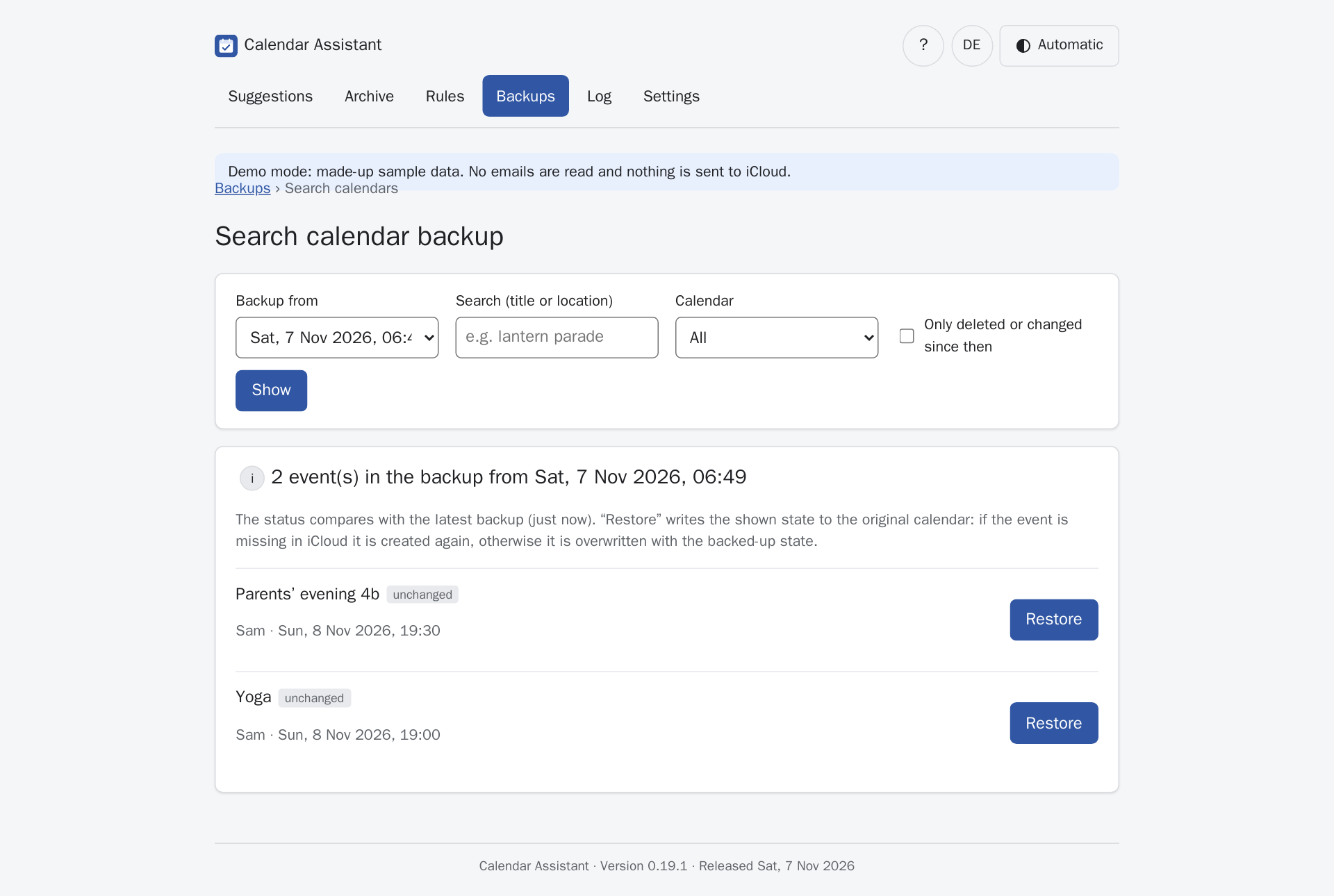
Daily backup of the app data and a versioned backup of your iCloud calendars – deleted events can be restored one by one.
For phone and tablet
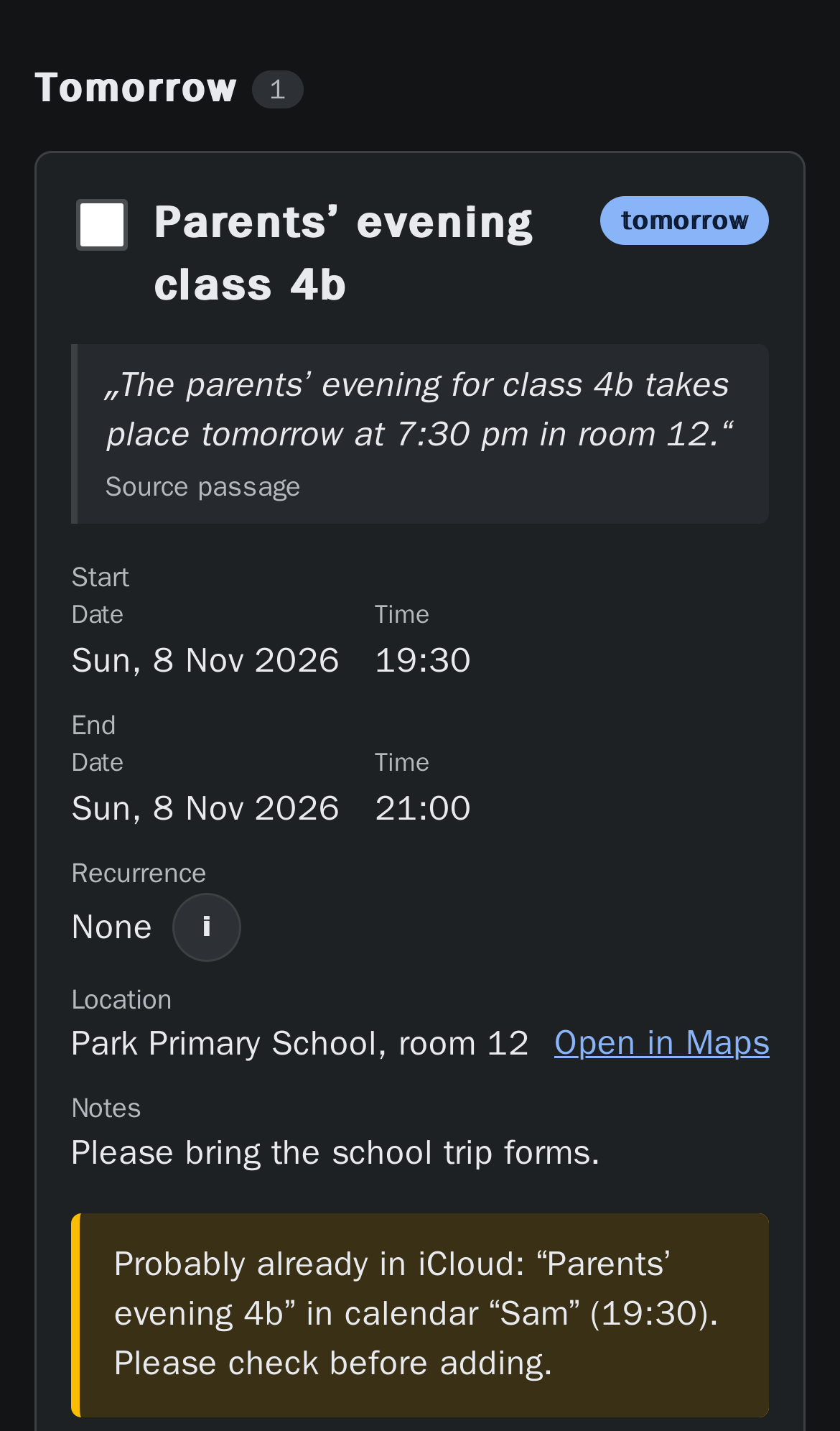
Works as a home-screen app with pull to refresh, light/dark mode and large touch targets.
German and English
Interface in both languages, switchable per device.
What makes it different
Your data, your choice
With a local AI (LM Studio, Ollama) no email leaves your network. Without your own hardware it also works with OpenAI, Claude, Gemini or Mistral. Only suggestions with a short quote are stored – not the emails themselves.
Read-only, write on demand
The mailbox is never changed. The app only writes to iCloud when you tap – and only to the calendars you allowed.
Honest about uncertainty
If the AI is unsure, the card is marked. Assumed end times are labelled “assumed”.
No subscription
One Docker container and one settings file; a cloud AI is possible but not required. You can even try it without any mailbox in demo mode.
Screenshots
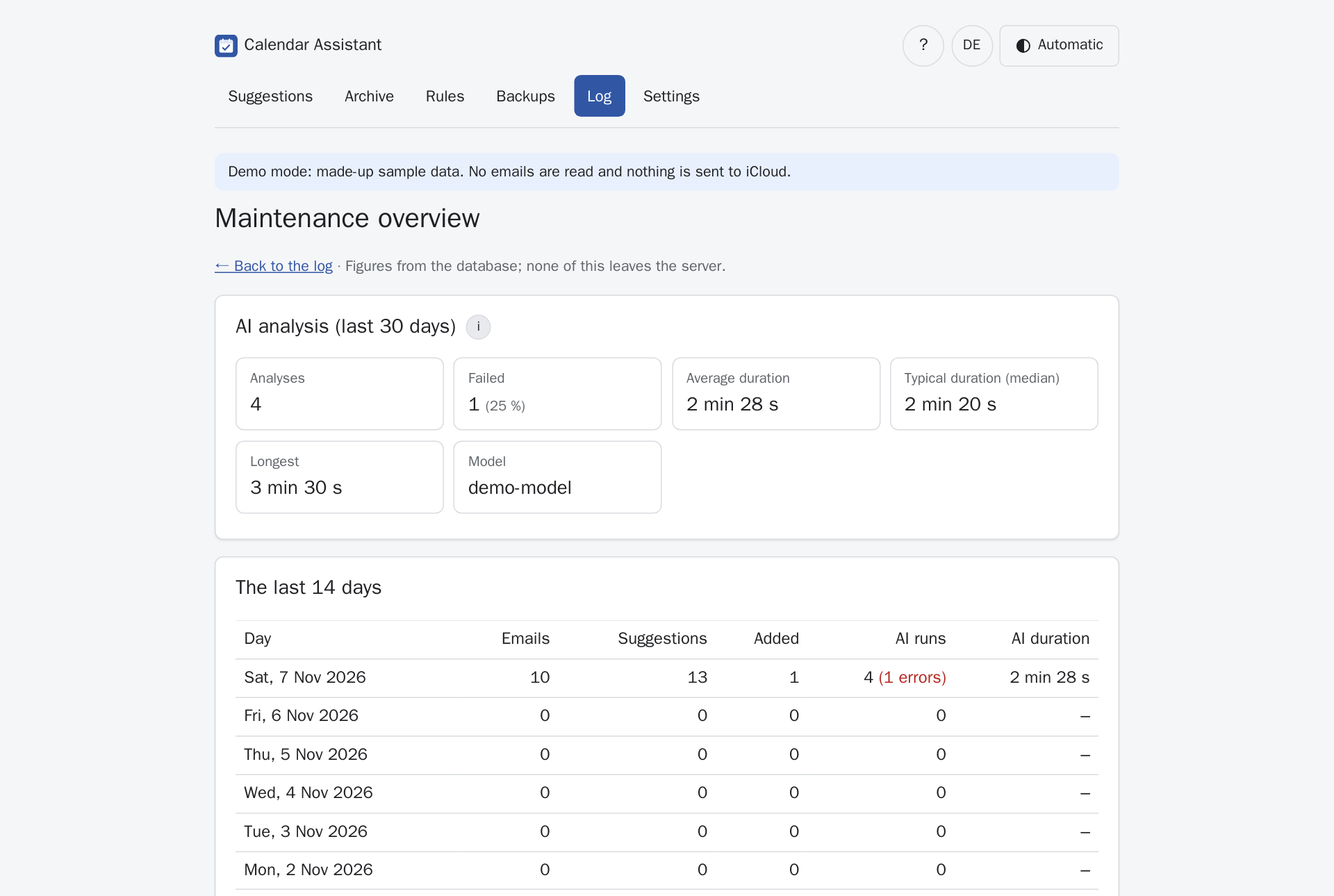
All screenshots come from the built-in demo mode with made-up data.
Installation
About 15 minutes. You need a machine on your home network that runs all the time (mini PC, NAS with Docker, Raspberry Pi 4/5).
1. Requirements
- Docker with Docker Compose 2.24 or later – guide: docs.docker.com/engine/install
- A mailbox with IMAP access. Ideally a separate address you forward event emails to, e.g.
events@your-domain.com. - An AI with an OpenAI-compatible API: locally with LM Studio or Ollama, or a cloud service such as OpenAI, Anthropic Claude, Google Gemini, Mistral or OpenRouter (API key required). For photos and scans, a model with image recognition (vision).
- For iCloud: an app-specific password (step 3).
2. Prepare iCloud
- Sign in at account.apple.com → Sign-In and Security → App-Specific Passwords → create a new password, e.g. “Calendar Assistant”. You will need it in the setup wizard in a moment.
- In the Calendar app, create the calendars events should go to – e.g. one per person and a shared one.
3. Install and start
mkdir kalender-assistent && cd kalender-assistent
curl -fsSLO https://raw.githubusercontent.com/norcon/kalender-assistent/main/compose.yaml
mkdir -p data backups
sudo chown 100:101 data backups
sudo chmod 700 data backups
docker compose --profile updater up -d
4. Setup wizard
Open http://<server-ip>:8080 in your browser. The wizard guides you through five steps and checks every connection right away:
- Language and time zone
- Mailbox – server, user, password; then choose the folder from the list.
- AI – choose a provider (LM Studio, Ollama, OpenAI, Claude, Gemini, Mistral, OpenRouter or another server); the address is filled in. For cloud services enter the API key, pick a model from the list and try it with a sample email.
- iCloud – Apple ID and app-specific password; then choose the target calendars and add a short description for the AI to each.
- Save and start – the app restarts with the new settings.
Skip: if something does not work, end the wizard with “Skip”. The app then starts without a mailbox and shows a notice at the top from which you can restart the wizard at any time – or you enter the credentials under Settings → Connections.
On a phone: open the page in the browser → Share → Add to Home Screen.
Without the updater
The wizard does not need the updater: docker compose up -d without --profile updater is enough. You only lose one-click updates.
Just try it first (demo mode)
Without mailbox, AI or iCloud, with made-up sample data:
docker run --rm -p 8080:8000 -e DEMO_MODE=1 -e APP_LANGUAGE=en ghcr.io/norcon/kalender-assistent:latestThen open http://localhost:8080.
Update and roll back
With one click (recommended)
Enable the updater once:
docker compose --profile updater up -dThe app then shows new versions with their changes under Settings → Version and updates. One tap is enough: the app creates a full backup, switches versions and checks that everything starts cleanly – otherwise it returns to the previous version by itself. Switching to an earlier version works there too, optionally with the data from before the last update.
By hand
cd kalender-assistent
docker compose pull
docker compose up -d
The database is upgraded automatically on start. The app makes a backup every night; before an update you can create an extra one under Backups → Back up now.
Back to an earlier version
Easiest with one click under Settings → Version and updates. By hand: put the version you want into compose.yaml (all versions are listed in the changelog):
image: ghcr.io/norcon/kalender-assistent:${KALENDER_VERSION:-0.28.0}docker compose pull
docker compose up -dIf the newer version has already changed the data: restore the backup from before the update under Backups. To return to the latest version, put latest back instead of the number.
Backup
Everything important lives in two folders next to compose.yaml:
| Folder | Contents |
|---|---|
data/ | database with suggestions, rules, history, settings and encrypted credentials – including the key secret.key, without which they cannot be read |
backups/ | daily database backups and the versioned backup of your iCloud calendars |
Copy both folders and compose.yaml to a second device regularly, e.g. a NAS – the built-in backups live on the same disk.
FAQ
Does it work without iCloud?
iCloud is what has been tested. Other CalDAV servers (e.g. Nextcloud) probably work if you change the calendar server under Settings → Connections – feedback welcome. Without calendar access the app still shows the suggestions.
Which AI do I need?
Any API that speaks the OpenAI “Chat Completions” format – local or cloud. Either way a current model with image recognition is recommended so that photos of school letters and scanned PDFs work too.
Local (LM Studio, Ollama): no email leaves your network and there are no running costs – but you need a reasonably powerful machine, ideally with a graphics card.
Cloud (OpenAI, Anthropic Claude, Google Gemini, Mistral, OpenRouter): no hardware of your own, usually faster; each email costs a little, with small models such as claude-haiku-5-5, “mini” or “Flash” models a fraction of a cent. In return, email texts and attachments go to the provider – free tiers often allow using them for training.
The maintenance overview shows how long an analysis takes.
Can I use a cloud AI service?
Technically yes (AI_BASE_URL and AI_API_KEY). Email contents are then sent to that service – decide consciously.
What about advertising and parcel emails?
The AI is instructed to ignore them. Whatever slips through you can hide for the whole sender with one tap; newsletters with uncertain detection end up under “Hidden” automatically.
Is the AI prompt in English?
The prompt is in German, but current models handle English emails with it just fine. Technical log messages are in German as well.
How do I know everything is running?
See the system status on the start page, the Log and the Maintenance overview. The container also reports its health to Docker (docker compose ps shows “healthy”).